

If you’re setting up a Shopify store for the first time, adding products can feel… confusing. A little overwhelming, honestly. There are menus, tabs, options you don’t fully understand yet. And suddenly you’re staring at words like variants and collections wondering if you missed a class. Relax. You didn’t.
Here’s the thing. Once you understand how products, variants, and collections fit together, Shopify actually makes a lot of sense. Let’s walk through it step by step. No heavy tech talk. Just the stuff you actually need.
Step 1: Adding a Product in Shopify

A product is the main item you’re selling. Simple enough.
From your Shopify admin dashboard, go to Products → Add product. This opens the product editor, where most of the magic happens.
Start with the title. Keep it clear. Don’t overthink it. “Men’s Cotton T-Shirt” beats “Premium Ultra-Comfort Breathable Casual Wear.”
Then comes the description. This is your chance to talk to real humans. What problem does the product solve? Who is it for? How does it feel or work? Short paragraphs help. Nobody likes giant text blocks.
Next, upload product images. Use good lighting. Multiple angles help. If customers can’t touch it, they rely on photos. Big time.
Now set the price. If you have a compare-at price (for discounts), add that too. Inventory, SKU, and barcode details go below. You can fill them now or later—it’s fine.
Before moving on, assign the product to the right product status (active or draft). Draft is your friend while testing things.
Step 2: Adding Variants
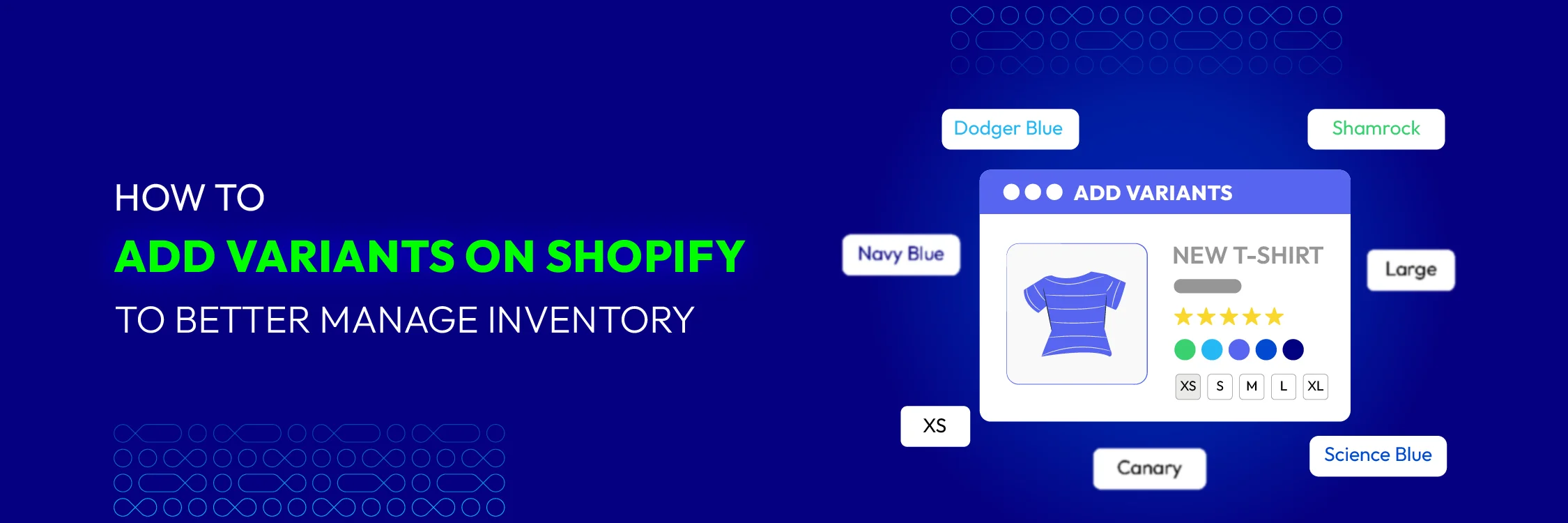
Not all products are one-size-fits-all. That’s where variants come in. Variants are different versions of the same product. Think size, color, material, or even packaging.
Scroll down to the Variants section in the product editor. Check the option that says This product has options, like size or color.
You can add up to three options per product. For example:
- Size: S, M, L, XL
- Color: Black, White, Blue
Shopify automatically creates combinations for you. Handy, right?
Each variant can have its own price, SKU, and inventory. So if the large blue shirt costs more—or you’re out of stock – you can manage that easily.
Quick tip: Don’t create too many variants unless you really need them. It can get messy fast. Keep it simple.
Step 3: Organizing Products Using Collections
Now let’s talk about collections. This is where your store starts to feel organized.
Collections group similar products together. Like “New Arrivals,” “Best Sellers,” or “Men’s Clothing.”
Go to Products → Collections → Create collection.
Shopify gives you two options: Manual and Automated.
- Manual collections let you add products one by one. Great for curated lists.
- Automated collections use rules. For example, all products with the tag “summer” automatically appear in the Summer Collection. Set it once, and Shopify does the rest.
Honestly, automated collections are a lifesaver once your store grows.
Give your collection a name, add a description (optional but good for SEO), and set the conditions if you’re using automation.
Step 4: Using Tags to Make Life Easier
Tags don’t show up on your storefront, but they matter behind the scenes.
You can add tags to products like cotton, sale, winter, or kids. These tags help you filter products in your admin and create automated collections.
Think of tags like sticky notes. Small, but very useful.
Step 5: Showing Collections on Your Storefront
Adding collections is one thing. Showing them to customers is another.
Go to Online Store → Navigation and add collections to your main menu or footer. This helps shoppers find what they want without digging.
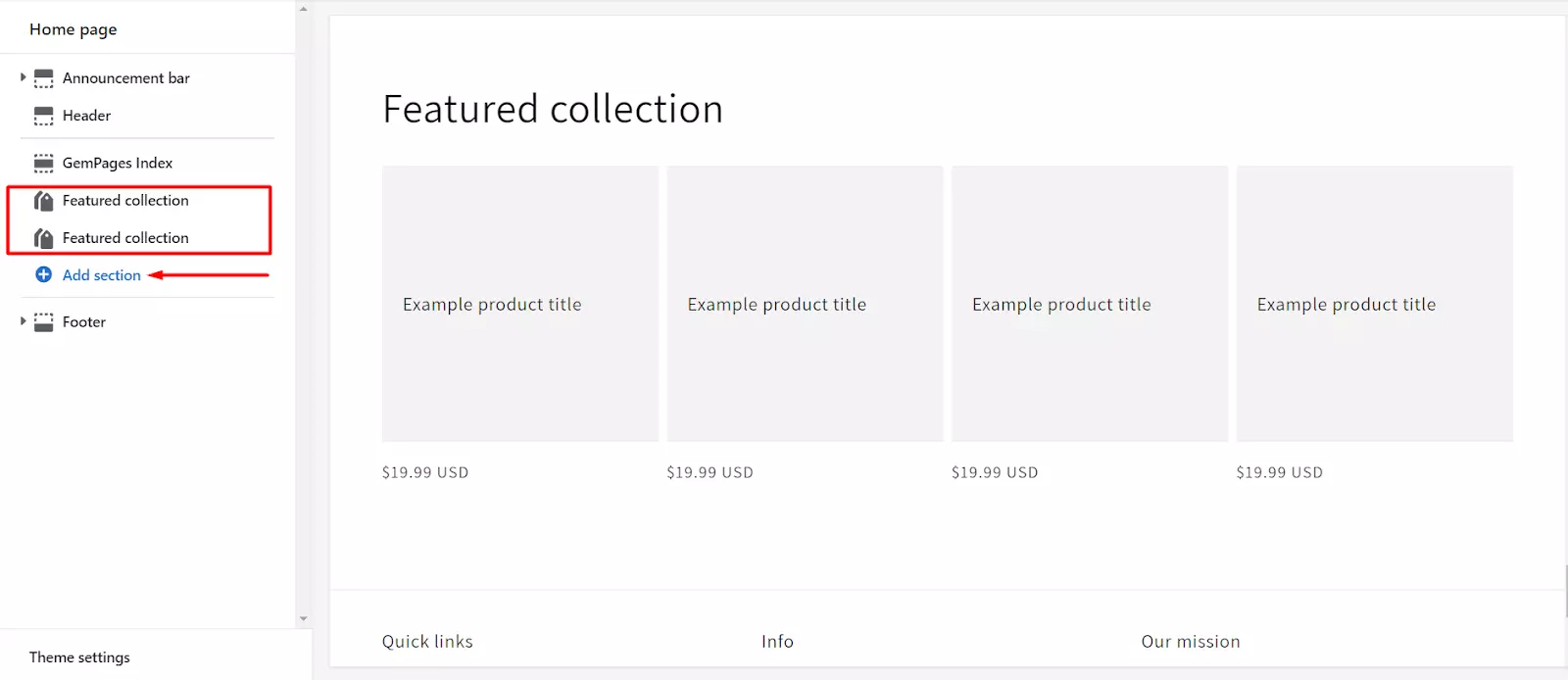
You can also feature collections on your homepage using theme sections. Most Shopify themes make this easy. A few clicks. Done.
Final Thoughts
Shopify has a learning curve. But it’s not as scary as it looks.
Once you understand how products, variants, and collections work together, everything clicks. Products are what you sell. Variants are the options. Collections keep things tidy.
Start small. Add one product. Play around. You won’t break anything. And if something feels confusing at first? That’s normal. Every Shopify store owner has been there.